Print Styles for a Business Website: From CSS to PDF Checks
A visitor wants to print instructions for preparing materials. The preview shows navigation, wide cards, and a heading stranded at the bottom of a page. Start by deciding what the visitor should be able to use on paper. Then choose print styles and check how they behave on real pages.
Decide what remains useful off screen
The screen version also supports navigation and data entry. Printed instructions need a title, the steps, and any contact details required to use them. Keep warnings, figure captions, and important table headings. Hide only the components you have checked are specific to the screen experience.
CSS can apply rules conditionally for the print media type [1]. You can adapt the same content and maintain one source of text. A separate document is useful if you actually need a different structure or a verified copy for distribution.
Set up the main print rules
Limit your selectors to the template you are testing. Switch a multi-column layout to one column where helpful, and check that long words and images fit the available width. Use readable text colors and a content order that makes sense from top to bottom.
The @page rule can set page margins [2]. Leave room for the content and test on the paper size your visitors use. Check the result with the print options available in the browser, too.
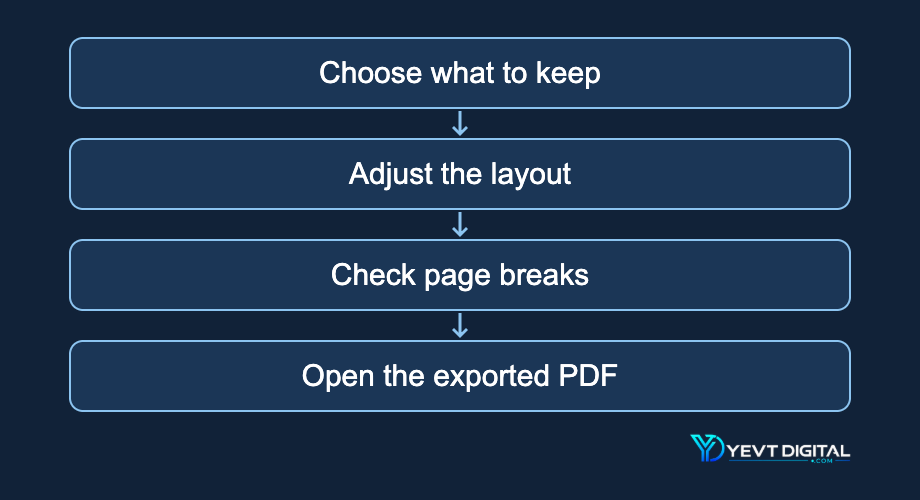
- Choose what to keep
- Adjust the layout
- Check page breaks
- Open the exported PDF
Adjust page breaks for each kind of content
A section heading is easier to follow when it stays with the start of its text. For a small figure, try to keep it together with its caption. The CSS specification describes break-after and break-inside as controls for these kinds of breaks [3]. Also preview a page where a whole block is too tall to fit.
A long table or a multi-page guide needs room to break across pages. Check the top of the next page, the readability of column labels, and whether the last row is visible. If the layout fails, simplify the content or change a targeted rule before forcing breaks throughout the template.
Illustrative example: a materials checklist
Imagine a page with a title, a file checklist, a diagram, and a floating contact button. Remove the button from the print layout and keep the contact details as plain text. Check that the title and list still make sense when the diagram moves onto the next page.
The CSS example assumes the classes .print-ui-only and .print-document exist. Adapt them to your template. Preview a longer version with a larger figure. A short sample can hide a page-break problem.
@media print {
  .print-ui-only { display: none; }
  .print-document { display: block; }
  .print-document img { max-width: 100%; height: auto; }
  .print-document h2 { break-after: avoid-page; }
  .print-document figure.keep-together { break-inside: avoid-page; }
}
@page { margin: 16mm; }
Use more than one preview
Emulating print media helps you inspect which styles apply. Open the actual print dialog as well, go through the pages in order, and open the exported file. Include a page with longer text and another with wide content.
If important details appear only after a click, check what prints before and after that click. If meaning depends on a background color, see whether it remains clear with backgrounds disabled. A PDF you distribute as an official document also needs its own accessibility check.
Before editing, make a short table of expected results. Identify essential content, its location on screen, and how you will find it in print. The final instruction must remain visible, for example, whereas a menu-opening button has no use on paper. Do not assume an entire sidebar is dispensable: it may contain an address, deadline, or important notice.
| Check | What to look for in the output |
|---|---|
| Heading and section opening | The heading stays with its text. |
| Wide table | Every column and the final row remain visible. |
| Figure and caption | The caption remains readable and meaningful beside the figure. |
| Document ending | The final step and essential contact details are present. |
Separate an observation from its suspected cause in your notes. Write “the rightmost column is absent from the PDF,” then investigate table width, margins, and break rules. Changing every style at once makes it harder to identify which change solved the problem. Keep the previous output and repeat the same example after each targeted adjustment.
Also check whether printed instructions depend on a link that can no longer be clicked. If its destination is essential, consider showing the appropriate address or contact details. First inspect what the address contains: avoid copying private access links, tokens, or personal information into a public example. This content review is separate from the page's appearance.
Use a checklist before the next release
Choose a page that visitors are likely to print. Compare its title and steps with the exported PDF. On the last page, check the final step, complete contact details, and figure captions. In both languages, check that longer headings fit and that contact details are appropriate.
Record the browser, paper size, and print settings. That gives you a reproducible check for the next template change. If a paper copy matters, make a physical proof as well, especially to check margins and contrast.
Frequently asked questions
Do I need separate HTML for print?
If the content stays the same, rules for print media are often a useful starting point.
Where do I set margins?
The CSS @page rule can set page margins. Verify the result in the print dialog.
Should I hide the whole navigation?
Hide screen-specific elements once you have checked they contain no essential information.
What if a figure is taller than the page?
Consider reducing its size, splitting the content, or choosing a different layout.
Why open the saved PDF?
It shows the output a visitor can receive, including page breaks and content across all pages.
Does the preview prove the PDF is accessible?
Visual review is one part of the check. Verify the accessibility of any official PDF separately.
Conclusion
Start with one important page. Keep what a reader needs, adapt the layout to paper, and open the exported PDF. Repeat the check with longer content and in the other language.
Send a brief for your business website
Sources