Keyboard Navigation: Test Focus, Order and Components That Trap Users
A site that works with a mouse is not automatically operable by keyboard. A user must see where focus is, move through controls in a logical order, activate functions without a pointer and leave dialogs, menus or composite widgets without becoming trapped. These qualities are tested by moving through the actual page, not by reading HTML alone.
WCAG 2.2 requires focus order to preserve meaning and operability. The WAI-ARIA Authoring Practices emphasise visible focus, predictable movement and appropriate focus placement when a dialog closes or the active item disappears. The workflow below is a practical first check. It does not replace a complete accessibility evaluation or testing with users.
1. Start with function, not visual position
Inventory the actions a user must complete: open navigation, choose a language, submit a form, accept or dismiss a dialog, operate media and return to content. Record the expected start and end focus point for each task. Visual position can help, but focus order need not match screen layout exactly; it must remain logical and understandable.
Begin at the top without a mouse. Use Tab to move forward and Shift+Tab to move back. For composite widgets, check the documented pattern because arrow keys may move selection within a menu, tab set or list. Do not declare a control broken merely because Tab is not used inside that component.
| Check | Expected evidence | Common failure |
|---|---|---|
| Reachability | Every function has a keyboard path | Clickable div with no keyboard behaviour |
| Visible focus | Active control is clearly marked | Outline removed without replacement |
| Order | Sequence preserves meaning and operation | Positive tabindex rewrites the path |
| Exit and return | No trap; focus returns sensibly | Dialog closes and focus is lost |
2. Follow one visible focus path
Pause at every stop and confirm that focus can be located clearly. The indicator must remain visible against the page’s real backgrounds, including dark surfaces, images and active buttons. Distinguish focus from selection: focus identifies where keyboard input will act, while a selected item may remain elsewhere.
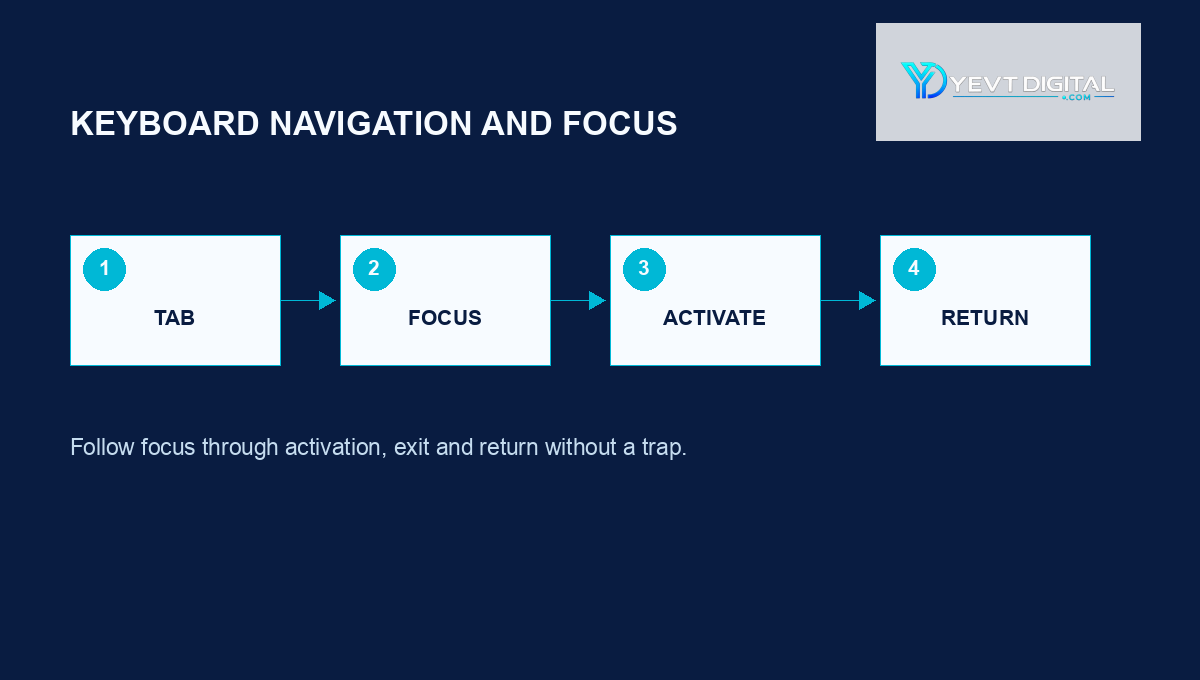
Write the order as a short sequence and compare it with the meaning of the content. Skipping an important button, entering a hidden menu or jumping to the footer before main content requires investigation. Duplicate focus on nested interactive elements can expose the same action more than once.
3. Check activation and every functional outcome
Enter and Space have different roles depending on the native element and component pattern. Confirm that the expected key triggers the action, the state changes and the result is available to assistive technology. Avoid generic key handlers that ignore native behaviour; they can cause duplicate activation or block page scrolling.
For hover-only functionality, verify an equivalent focus and keyboard path. Tooltips, submenus and extra controls must not disappear before the user reaches them. When an action changes content without loading a page, check where focus remains and whether the user receives understandable confirmation.
4. Test dialogs, menus and dynamic components
When a modal dialog opens, focus should enter at a meaningful place and should not travel into temporarily inactive page content. Escape often closes a dialog when the pattern specifies it. On close, focus usually returns to the invoking control or another logical point if that control no longer exists.
For menus, autocomplete, tabs and composite lists, follow the specific component pattern. Test arrows, Home, End and Escape only when that pattern expects them. Dynamically deleting the active item must not send focus to the document start without a clear reason.
5. Recognise traps and risky fixes
A trap occurs when a user can enter a region but cannot continue or return with a standard or clearly documented key. Common causes include intercepting every keystroke, cycling through an inactive layer, embedded content with no exit and a dialog whose trigger was removed without a new destination.
Do not repair order with large positive tabindex values. They create a parallel sequence that is difficult to maintain and can diverge from DOM order. Prefer semantic native elements, logical source order and tabindex="0" only where a custom control genuinely belongs in the sequence. Never remove an outline without a visible replacement.
6. Turn the check into a repeatable record
Select representative paths: main menu, an information page, a form, a dialog and the key business action. Record browser, viewport width, start point, exact keystrokes, expected outcome and observed outcome. A screenshot can prove position, but a video or precise sequence better demonstrates focus movement.
Repeat critical paths at narrow and wide widths because navigation and element order often change. After a fix, test forward and backward movement, activation, dismissal and focus return. Automated tools can find some code issues, but they cannot establish that the entire task flow is logical and trap-free.
- Identify key functions and expected focus points.
- Traverse with Tab and Shift+Tab.
- Confirm visible focus and logical order.
- Activate every function without a mouse.
- Test entry, exit and return in dynamic components.
- Preserve steps, evidence and retest result.
7. Frequently asked questions
Must every element receive focus?
No. Interactive elements and places required by a pattern need focus; ordinary text is normally read without entering the Tab sequence.
Must order follow the layout pixel by pixel?
No, but it must preserve meaning and operability. Large divergence between visual and focus paths is often confusing.
Is tabindex="-1" always an error?
No. It allows programmatic focus without joining the normal Tab order, which can be useful with correct focus management.
Must Escape always close a component?
Not every component, but many menu and dialog patterns expect it. Follow the documented pattern and communicate behaviour.
Can an automated tool prove there is no trap?
Not reliably for a whole task. Manual testing of actual keyboard movement and function is required.
What should be fixed first?
Traps, unreachable key functions and invisible focus have immediate impact; then address order and pattern consistency.
8. Conclusion
Keyboard testing follows the actual path: reachability, visible focus, logical order, activation, safe exit and focus return. Test key tasks forward and backward at different widths, preserve exact steps and repeat them after a fix. Code review and automated findings help, but do not replace manual verification of operability.
Sources: W3C: Understanding Focus Order, W3C ARIA APG: Developing a Keyboard Interface, W3C WAI: Easy Checks. Accessed 19 November 2026.
Send the site address and key task path for a keyboard-navigation review.